
Once your BrokerEdge CRM is connected in the Canadian Mortgage App Web Admin Dashboard, leads from your Lead Journeys will automatically sync into BrokerEdge. Where they appear depends on the type of lead.
How leads are organized in BrokerEdge CRM
Contacts Section
All leads from Lead Journeys are first created as Contacts.
Navigate to the Contacts group to view them
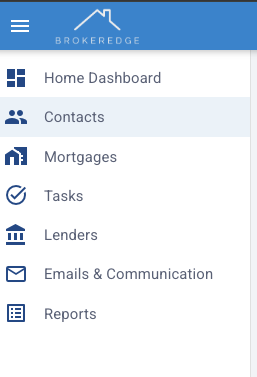
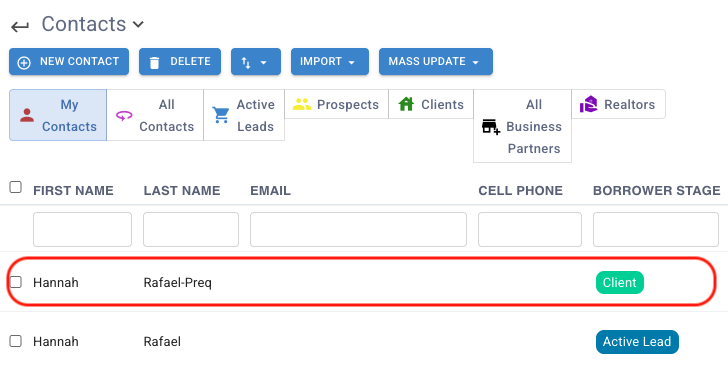
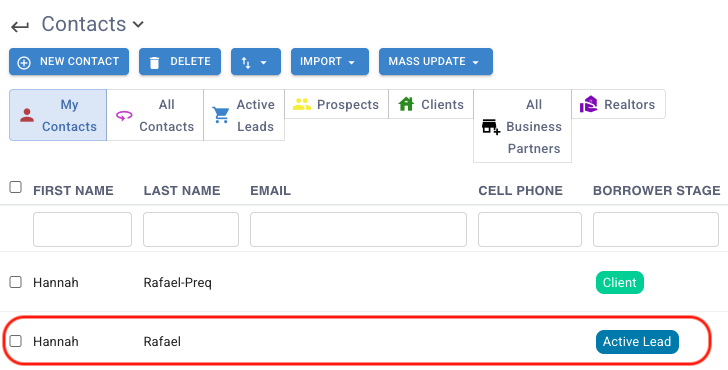
Lead types are tagged automatically:
Pre-Qualification (Pre-Qual): Tagged as a Client
Refinance (Refi): Tagged as an Active Lead
Mortgages Section
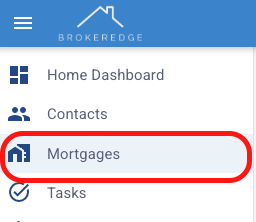
Leads are also reflected under Mortgages, but how they appear depends on the lead type:
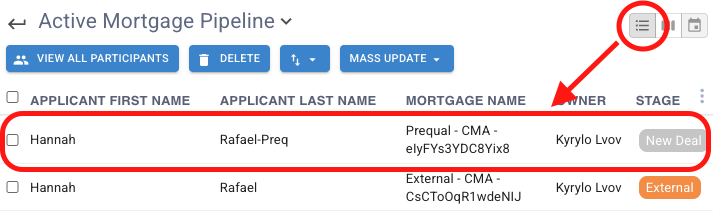
Pre-Qualification (Pre-Qual):
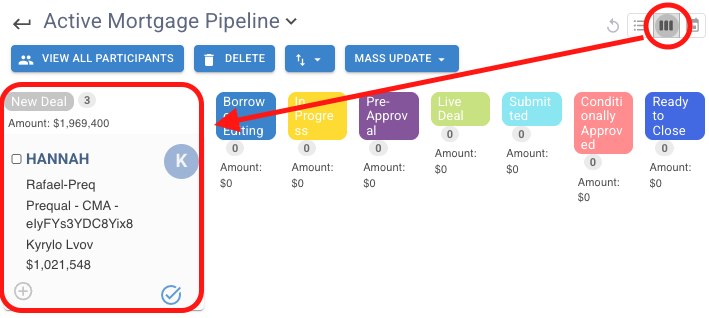
→ A new deal is created.
You can see it under the Kanban View under New Deal.
Under List View, you can see the contact stage tag as a new deal.
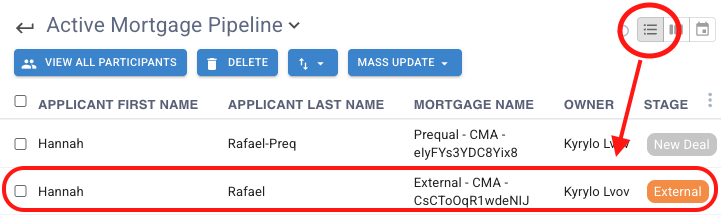
Refinance (Refi) lead:
→ A deal is created and tagged as External. Please note that External deals won’t appear in Kanban view—switch to List View to see them.
If you’re not seeing the lead, make sure your BrokerEdge integration is connected correctly in your Canadian Mortgage App Web Admin Dashboard → Connections.