
Step 1: Log in to your Web Admin Dashboard by going to admin.bendigi.com and following the login instructions on that page.
Step 2: Once logged in, click Connections.
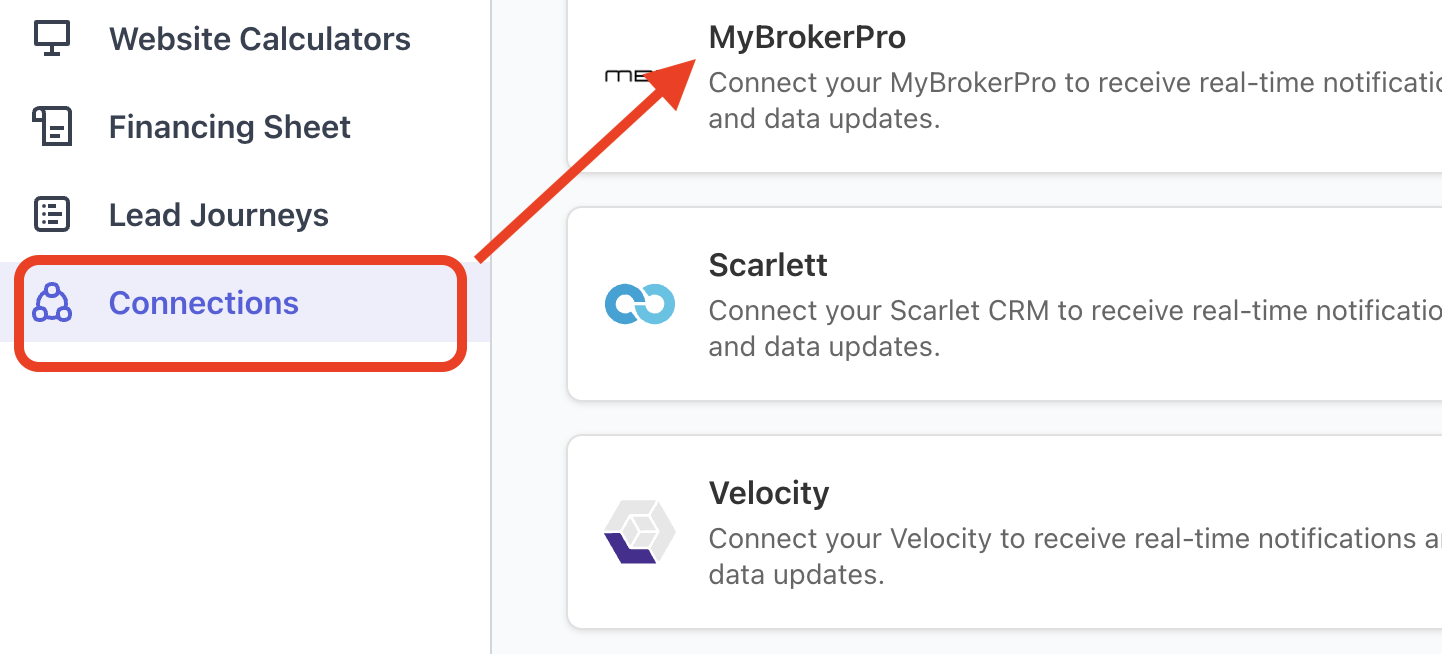
Step 3: Find MyBrokerPro in the list of integrations and click Setup.
Step 4: In a separate browser tab, log in to your MyBrokerPro account.
Step 5: In MyBrokerPro, go to Settings → Company Settings → Locations.
Step 6: Copy your Location ID.
Step 7: Return to the Canadian Mortgage App Web Admin Dashboard, paste the Location ID
Step 8: Go back to your My Broker PRO and go to Settings → Private Integrations.
Step 9: Create a new API Key (or copy an existing one). When creating the API key, make sure the following scopes are enabled:
opportunities.readonlyopportunities.writecontacts.write
Step 10: Return to the Canadian Mortgage App Web Admin Dashboard, paste the API Key, then click Add.
Once completed, a green “Connected” status should appear under the MyBrokerPro integration.